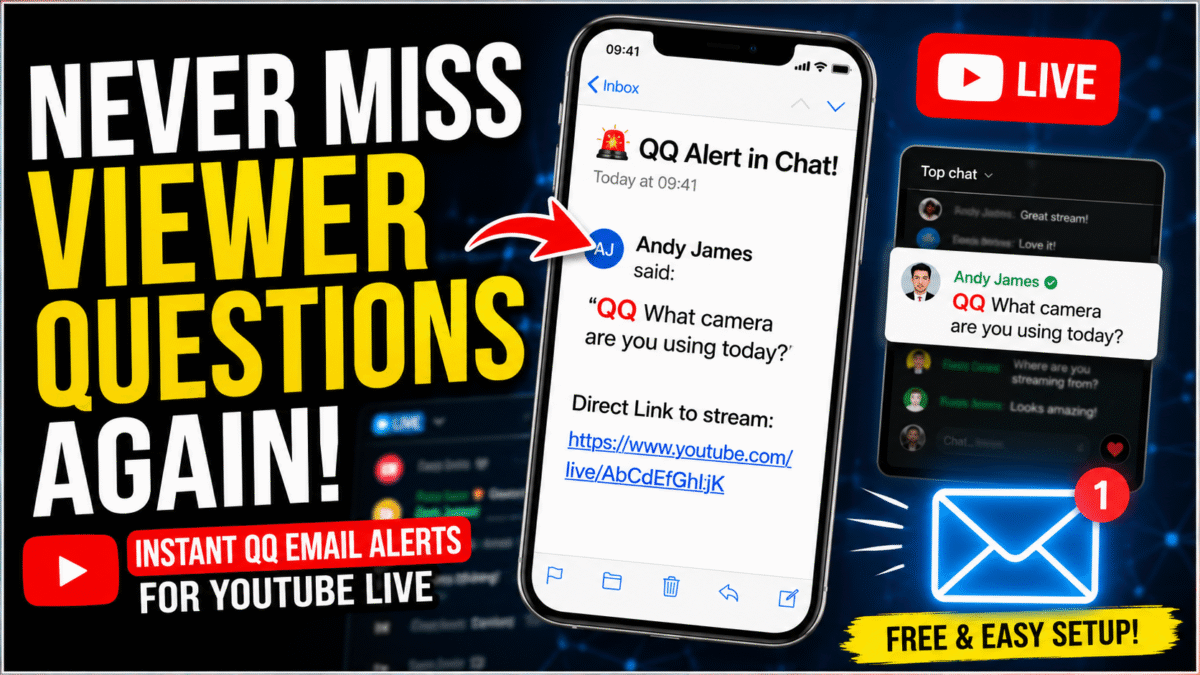
One of the biggest challenges of livestreaming is trying to do several jobs at once.
You’re hosting.
You’re reading comments.
You’re watching cameras.
You’re changing scenes.
And then afterwards somebody says:
“I asked a question earlier.”
The problem is, you’ve completely missed it.
I wanted a simple solution.
My viewers can now type QQ at the beginning of any question and my phone immediately receives an email alert.
It means important messages don’t disappear into the fast-moving chat.
Even better, the entire system is free.

What Problem Does This Solve?
During a busy livestream it’s very easy to miss comments.
Especially if you’re:
- Walking around Tenerife
- Hosting Balcony Banter
- Running Freaky Friday
- Doing Morning Walks & Coffee
- Talking to guests
- Watching multiple screens
By asking viewers to begin questions with QQ, those messages become impossible to miss.
How I Use It
My viewers simply type:
QQ What microphone are you using?QQ What restaurant are you at today?QQ How long have you lived in Tenerife?
Every time somebody does that, an email instantly arrives on my phone.
No special software.
No computer left running.
Google does all the work in the background.
Who Is This For?
This is ideal if you:
- Livestream on YouTube regularly
- Have a growing community
- Struggle to keep up with chat
- Often have guests on screen
- Walk around while broadcasting
What Does The System Actually Do?
The automation wakes up every minute.
It then:
- Connects to your YouTube live chat.
- Downloads the latest messages.
- Looks for messages beginning with QQ.
- Sends an email alert.
- Remembers messages it has already seen.
Then it goes back to sleep.
Simple.
The Copy & Paste Code
Copy everything below into Google Apps Script.
// --- CONFIGURATION --- const VIDEO_ID = 'YOUR_VIDEO_ID_HERE'; const MY_EMAIL = 'your-email@gmail.com'; // --------------------- function monitorLiveChat() { const cache = CacheService.getScriptCache(); try { const videoResponse = YouTube.Videos.list( 'liveStreamingDetails', { id: VIDEO_ID } ); if (!videoResponse.items || videoResponse.items.length === 0) { Logger.log( "Video not found. Double check your VIDEO_ID." ); return; } const liveChatId = videoResponse.items[0] .liveStreamingDetails ?.activeLiveChatId; if (!liveChatId) { Logger.log( "This video does not have an active live chat." ); return; } const chatResponse = YouTube.LiveChatMessages.list( liveChatId, 'snippet,authorDetails', { maxResults: 200 } ); const messages = chatResponse.items || []; for (let i = 0; i < messages.length; i++) { const msgId = messages[i].id; const text = messages[i].snippet .displayMessage || ""; const author = messages[i].authorDetails .displayName; if (cache.get(msgId) !== null) { continue; } if ( text.toUpperCase() .startsWith('QQ') ) { MailApp.sendEmail({ to: MY_EMAIL, subject: '🚨 QQ Alert in Chat!', body: `${author} said: "${text}"\n\n` + `Direct Link:\n` + `https://www.youtube.com/live/${VIDEO_ID}` }); } cache.put( msgId, 'true', 3600 ); } } catch (error) { Logger.log( error.toString() ); } }The 5 Minute Setup Guide
Step 1
Visit:
Click:
New Project

Delete the existing code.
Paste the code from above.

Step 2
Enable:
YouTube Data API v3
You’ll find this under:
Services → + Add Service

Step 3
Update two values:VIDEO_ID MY_EMAIL

Step 4
Authorise the application.
Google will ask for permission.
This is completely normal.
Step 5

Create the timer.
Choose:
- monitorLiveChat
- Time Driven
- Minutes Timer
- Every Minute
Save.
Finished.
My Simple Workflow
When I Am Not Streaming
Switch the timer to:
Day Timer
This keeps the automation alive without repeatedly checking a dead stream.
Just Before Going Live
- Update the VIDEO_ID.
- Save.
- Change the timer back to Every Minute.
It takes less than 30 seconds.
Final Thoughts
This is one of those tiny automations that makes livestreaming significantly easier.
Your viewers feel heard.
Important questions don’t get lost.
And you don’t have to constantly stare at the chat while trying to host a show.
Sometimes the simplest ideas are the best ones.